 Project Commander Docs
← Back to site
Project Commander Docs
← Back to site
Actions Tab — Feature Guide
What it's for
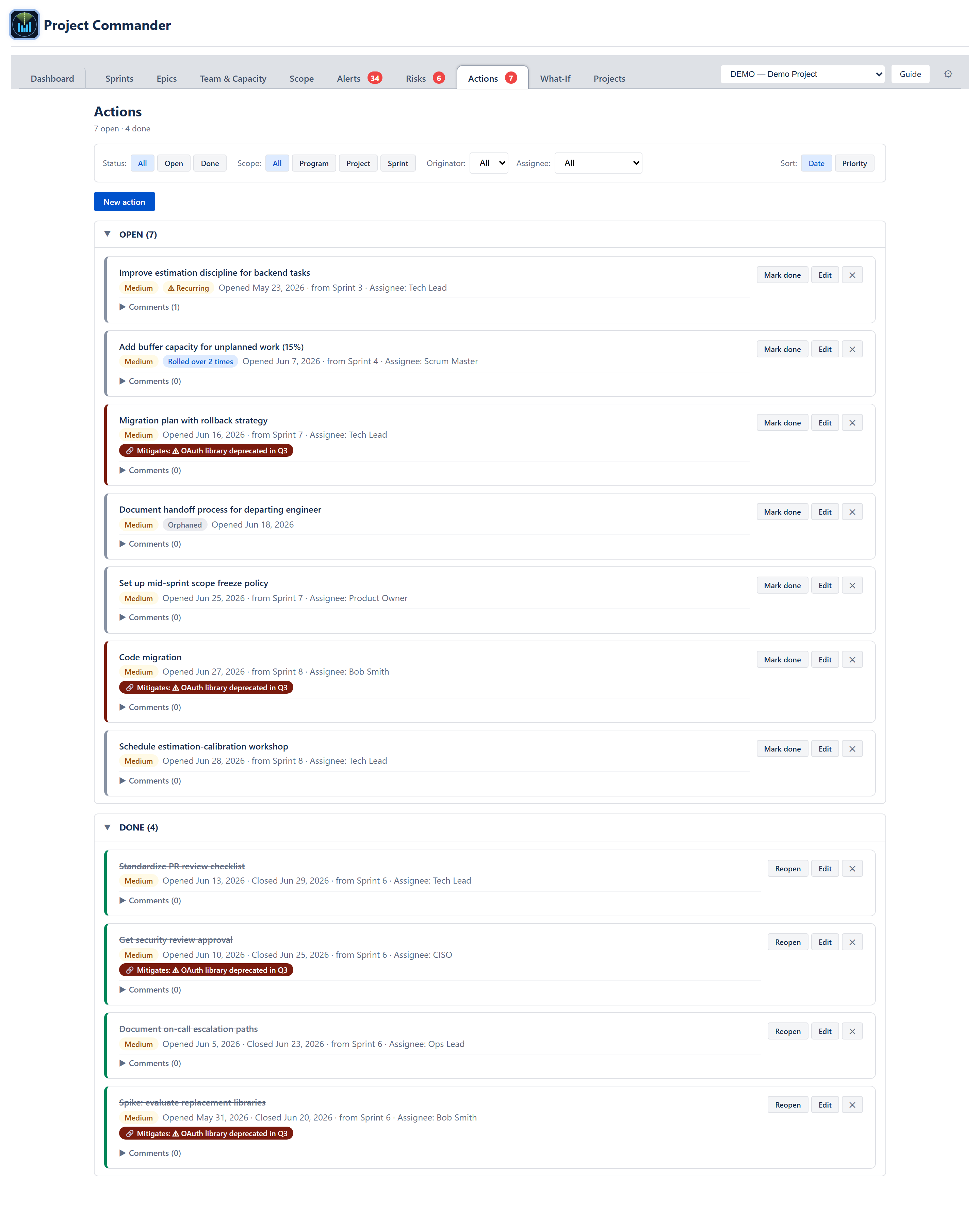
The Actions tab is the consolidated home for every action item the team has committed to: retro follow-ups, planning commitments, mid-sprint TODOs, and risk-mitigation tasks. Where the per-sprint Retro panel is local to a single sprint, the Actions tab is global — it shows every action across every sprint plus project- and program-scoped items, with filters and sort that let the user spot recurring patterns and aging commitments.
The audience is scrum masters, team leads, and anyone responsible for closing the loop on retro outcomes. A team that consistently writes good retro actions but never finishes them has a different problem from a team that doesn't write retro actions at all — the Actions tab makes both visible.
The data is persisted to the app's Forge storage under per-sprint keys (scoped to your Atlassian account, removed on uninstall); the tab reads, merges, and re-keys those entries so the user can edit any item from one place. Reads come from an in-memory cache hydrated at startup, so cross-sprint merges are instant.
Toolbar
A single row above the action list. From left to right:
Status filter
Three pill buttons — All, Open, Done. All shows both sets and renders them as two grouped sections (OPEN (N) and DONE (N)). Open shows only the open set. Done shows only the done set. Default is All.
Scope filter
Four pill buttons — All, Program, Project, Sprint. Sprint narrows the list to actions tied to any sprint; Project shows actions with project-level scope (no sprint); Program shows actions registered at the program level when multi-project mode is active; All shows everything regardless of scope.
Originator filter
A dropdown auto-populated with the names of every team member who has originated at least one action — i.e. the person who raised the action in a retro or planning session. Selecting a name narrows the list to actions that person raised. All shows everything regardless of origin.
Assignee filter
A dropdown auto-populated with the names of every team member who owns at least one action — i.e. the person responsible for closing it. Selecting a name narrows the list to that person's commitments. The list never includes assignees with zero items, so the dropdown is always meaningful.
Sort by
Two options:
- Date (default) — open items oldest-first by creation date; done items newest-first by close date.
- Priority — order by priority band (Critical → High → Medium → Low); within a band, items keep their storage order.
New action
A New action button in its own row below the filter toolbar (labelled New action, not + New action). Opens an inline create form (described below).
Action card
Every action renders as a card with a coloured left edge.
- Edge colour — green for done; the highest-severity linked risk's colour for risk-linked open actions; neutral grey for everything else.
- Title — the action text, prominent at the top. Strikethrough and grey when status is done. When the action is sprint-scoped, the title is clickable and jumps to that sprint's detail view.
- Metadata line — under the title: Opened Mon D, YYYY, Closed Mon D, YYYY (only when done), the scope (from Sprint Name, Project scope, or from Program), Assignee: <name> (it defaults to Unassigned when the field is left blank), and By: Originator.
- Status badges —
- ⚠ Recurring (yellow) — open AND age ≥ 30 days. (There is no same-title-in-an-earlier-sprint check.)
- Orphaned (grey) — the action's sprint no longer matches any sprint in the project (e.g., the sprint was deleted).
- Rolled over N times (blue) — count of sprints this action has been carried forward through.
- Linked risks — coloured chips reading 🔗 Mitigates: ⚠ <risk title> for every risk the action is linked to. Each chip is clickable. If a linked risk has been deleted the chip becomes a grey 🔗 linked risk no longer exists badge so the user knows to clean it up.
- Comments — collapsible Comments (N) with a toggle. Expanded view shows each comment with author, date, and text, plus an inline add-form.
- Priority badge — a small pill reading low, medium, high, or critical. Defaults to medium on newly created items; editable on the form.
- Action buttons —
- Mark done / Reopen — toggles status. When marking done with auto-close on, any linked risks where this is the last open action close silently.
- Edit — switches the card into inline edit mode.
- × (delete) — opens a ConfirmDialog (Delete action item? Delete "{title}"? This cannot be undone.) with Cancel and Delete buttons. Replaces the older two-step inline confirm.
Add / Edit form
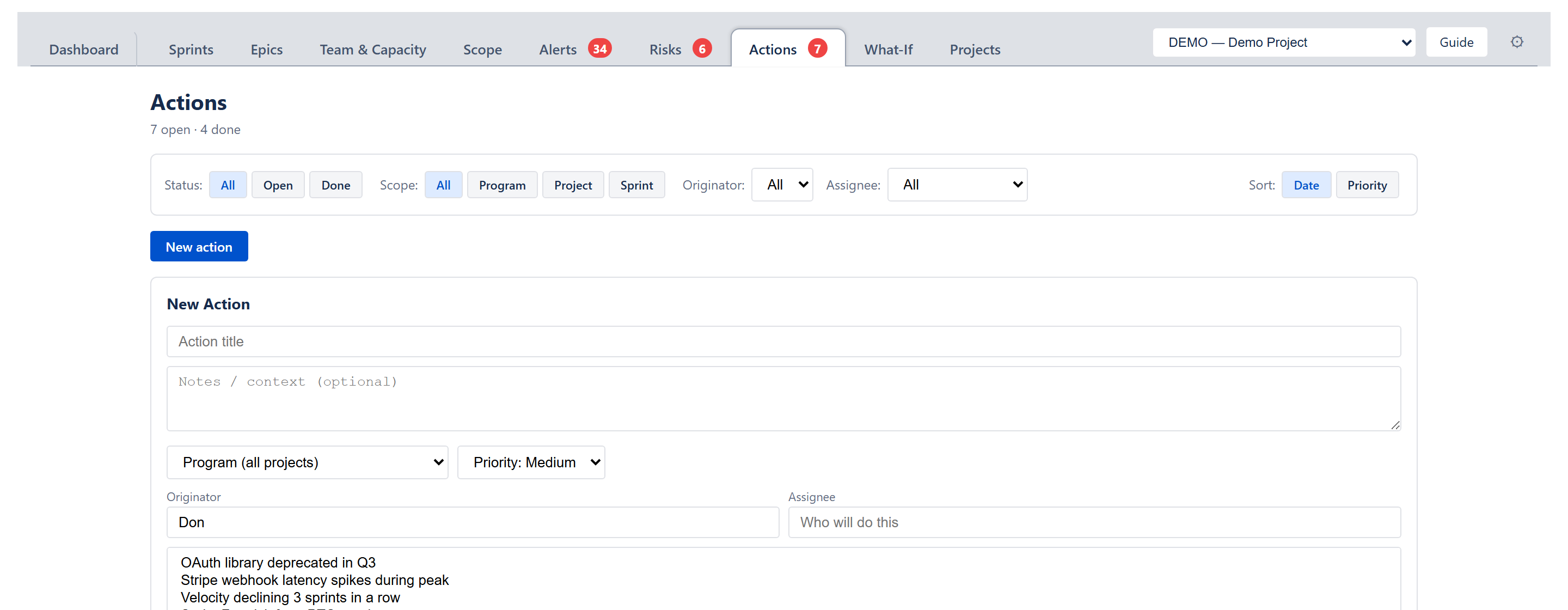
The form is the same shape for new and edit, opening inline either as the New action button's reveal or in place of an existing card.
- Action text (required) — what to do. Single-line, empty submissions are rejected.
- Notes / context — free-form text for surrounding detail (why this matters, what triggered it, references). Optional. Multi-line. Renders inside the card metadata when present.
- Scope dropdown — Program (all projects) (the default) plus every registered project key. When a specific project is chosen, a second sprint dropdown appears, defaulting to All sprints (project-wide) and listing that project's sprints so the action can optionally be narrowed to one sprint. (The single combined sprint dropdown that also lists closed sprints appears only on the edit form.)
- Priority — dropdown with four levels: Low, Medium (default), High, Critical. Drives the priority badge on the card and the Priority sort order.
- Originator — optional free-form text identifying who raised the action (e.g., Tech Lead, Bob Smith); pre-filled with the current user. Populates the Originator filter. (Plain text input — no autocomplete.)
- Assignee — optional free-form text identifying who is responsible for completing the action. Populates the Assignee filter. (Plain text input — no autocomplete.)
- Mitigates (Risks) — multi-select dropdown listing every open risk; visible only when the Risks feature is on. Selecting one or more creates the linked-risk chips on save.
Save commits the action to its sprint's storage key (or to project / program scope when those are selected). When the sprint is changed during edit, the action moves between storage keys.
Recurring detection
An action becomes Recurring when:
- Its status is
open. - Its age (days since creation) is ≥ 30.
Age is calculated as today − createdAt. For done items the age is the elapsed time at close; the Recurring filter only matches open items, so a slow-but-eventually-done action won't surface here.
Bulk actions
The current build does not expose bulk-select / bulk-mark-done. Each card's actions operate on the single item. The architecture supports it; check the next iteration for selection checkboxes.
Empty / loading / collapsed states
- No actions yet — centred empty-state message: No action items yet. Add items from your retros or use the New action button above — they'll appear here across every sprint.
- One section empty under filter — the empty section header (OPEN or DONE) still renders with an italic No open items match the current filters / No done items match the current filters line so the user understands the filter is active and not the data missing.
- Collapsible section headers — both OPEN (N) and DONE (N) are clickable to collapse; default is expanded. The (N) count is the number of items in that section under the current filters.
There is no explicit loading indicator because reads come from the in-memory cache (hydrated from Forge storage at app startup) — instant.
Cross-cutting modes
- Sprint mode on/off — in backlog-only projects the Sprint dropdown only offers Project and Program and the Sprint: field on cards never renders.
- Estimation mode — irrelevant to actions; the tab is unit-agnostic.
- Program mode (multi-project) — the Program scope option appears in the dropdown; cards filed against Program are visible across every project.
How the numbers are computed
The summary counts at the top of the tab read N open · M done — global across all sprints, all owners, all scopes, ignoring the active filters so the user always knows the project total. (There is no recurring count in this header.)
The Action Item Follow-through dimension on the Team Health Pulse and the Trend widget is documented in ALGORITHMS section 11. It computes done ÷ (done + open) per sprint over the lookback window, excluding sprints with zero actions so a quiet sprint doesn't drag the score down.
Effects on other parts of the app
- Sprint Retro mode — actions filed against a sprint appear inside that sprint's Retro view on the Sprints tab. The two views share storage; an edit here updates the retro and vice versa.
- Team Health Pulse — 4th dimension — the Action Item Follow-through dimension reads from the same storage. A declining score is a quantitative signal that retro commitments aren't closing.
- Risks tab — actions can be linked to risks; ticking the last open action with Auto-close risks on closes the linked risk silently. The reverse direction (risk-side mitigation list) is the same store.
- Sprint Risks engine — Recurring actions detector — fires when at least one action has been open for ≥ 30 days across two or more sprints with the same title; the detector reads from the same storage that this tab edits.
- Notification engine — when an open recurring action transitions back to open on a new sprint, a Recurring notification fires on the Notifications feed.