 Project Commander Docs
← Back to site
Project Commander Docs
← Back to site
Risks Tab — Feature Guide
What it's for
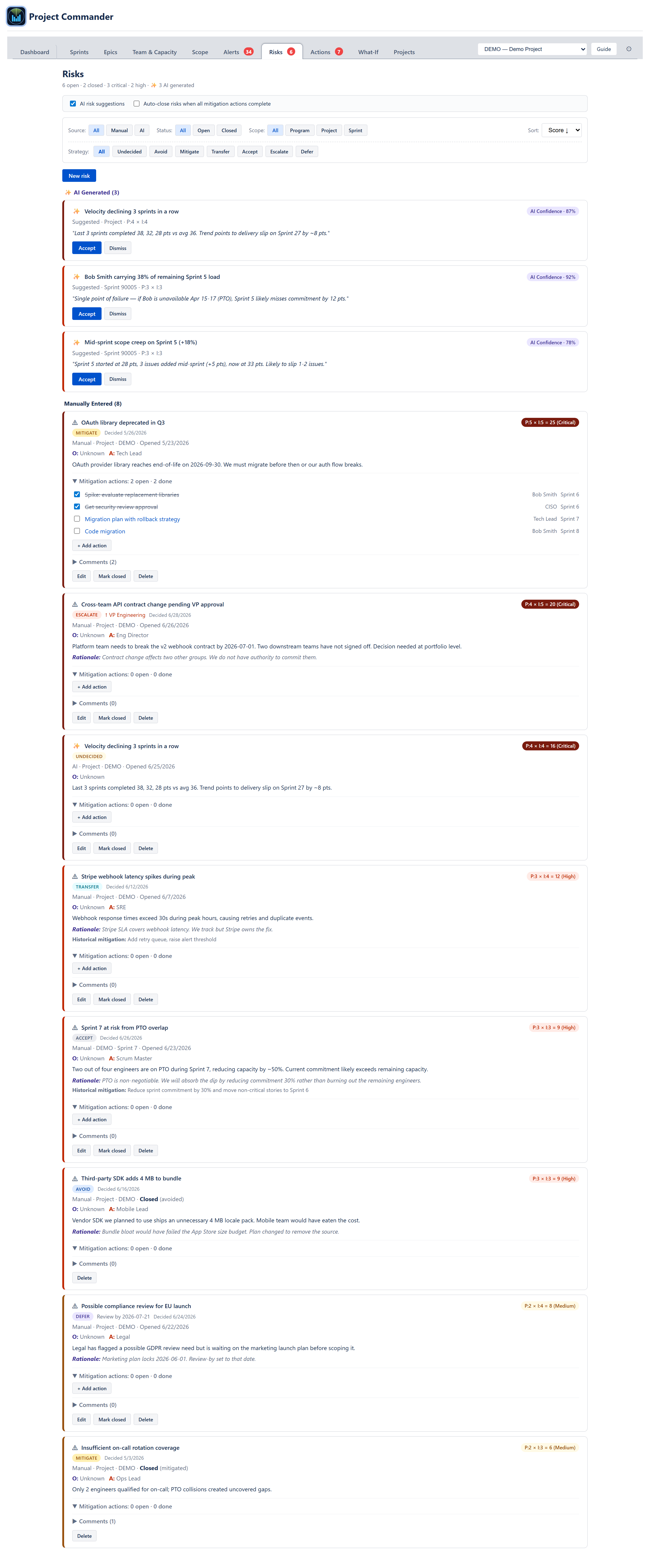
The Risks tab consolidates everything the project has told the team to worry about. Three sources flow into it: deterministic detectors (the same engine that drives Sprint Risks on the Dashboard), AI-generated suggestions (refinements of detector output through a language model), and manual entries created by the team in retros, planning, or ad-hoc. Every risk has a probability × impact score, a category, an owner via RACI fields, mitigation actions, and (optionally) comments.
The audience is anyone responsible for project health: scrum master, tech lead, product manager, programme manager. Where the Alerts tab catches issue-level data problems, the Risks tab tracks team-level threats — capacity issues, scope creep patterns, deadline slips, recurring people problems, and external dependencies.
Header
A summary line shows the risk register at a glance:
- N open — count of open (non-closed) risks across all sources.
- N closed — count of closed risks.
- N critical · N high — among the open set, count by severity band.
- ✨ N AI generated — appears when there are unreviewed AI suggestions still in the pending list.
Preferences
Two project-wide preferences sit just under the header:
- AI risk suggestions toggle — show or hide the AI Generated section entirely. When off, the deterministic detectors still run; only the display of suggestions is suppressed. Switching it back on un-hides the same items without re-running anything.
- Auto-close risks when all mitigation actions complete — when on, ticking the last open mitigation action on a risk closes the risk silently with reason mitigated. When off, the user is asked to confirm closure with a Yes, close button.
Filters and sort
A filter bar sits below the preferences. It is organised in two tiers because lifecycle (open / closed) and response strategy are not peers — strategy is how an open risk is being handled.
- Source — All / Manual / AI. All shows manual + accepted-AI in the Manually Entered section plus pending AI in the AI Generated section. Manual hides AI suggestions. AI hides manuals.
- Status — All / Open / Closed. Closed risks render in faded form with a Closed badge and the close reason; the AI section is hidden when Closed is selected because suggestions are inherently open proposals.
- Strategy (secondary tier) — All · Undecided · Avoid · Mitigate · Transfer · Accept · Escalate · Defer. Only appears when Status is All or Open; collapses when Status is Closed (a closed-with-strategy filter would invite illogical combinations like Closed AND Escalate). Selecting a strategy AND-combines with the lifecycle pill.
- Scope — All / Program / Project / Sprint. Drives which scope-key the risk is filed against; sprint-level risks come from the per-sprint detectors (capacity hit, single-person load, mid-sprint scope creep).
- Sort by — Score (P × I, highest first; default), Opened (most recent first), Closed (most recent close first), Owner (alphabetical). Sort applies to the Manually Entered section; AI suggestions retain detector emission order.
A New risk button at the end of the bar opens an inline create form.
AI Generated section
Visible when Source is All or AI and Status is not Closed. Each suggestion card shows:
- Sparkle icon + detector title.
- AI Confidence · X% — the detector's certainty that this risk is real, computed from detector parameters and the volume of triggering conditions.
- Source / scope line — a single line such as Suggested · Project · P:3 × I:3 (or Suggested · Sprint {id} · P:x × I:y). It does not show the project key, a combined score total, or a severity-band word; severity is conveyed by the card's coloured left stripe.
- Evidence block — the detector's plain-English reason ("Last 3 sprints completed 38, 32, 28 pts vs avg 36").
- Accept — opens the Accept dialog (described below).
- Dismiss — removes the suggestion and stores the dismissal locally so the same detector won't surface it again until conditions change.
AI title polish
When the user clicks Accept, the dialog tries to rewrite the detector's generic title into something context-specific (e.g., Over-commitment in Sprint 6 → Scope bleed on Auth module, Sprint 6) using the project's AI provider. The polished title is shown with a ✨ AI badge. Length is capped, quotes are stripped. If the AI call fails, is aborted (dialog closed), or no API key is configured, the original title stays.
AI mitigation suggestions
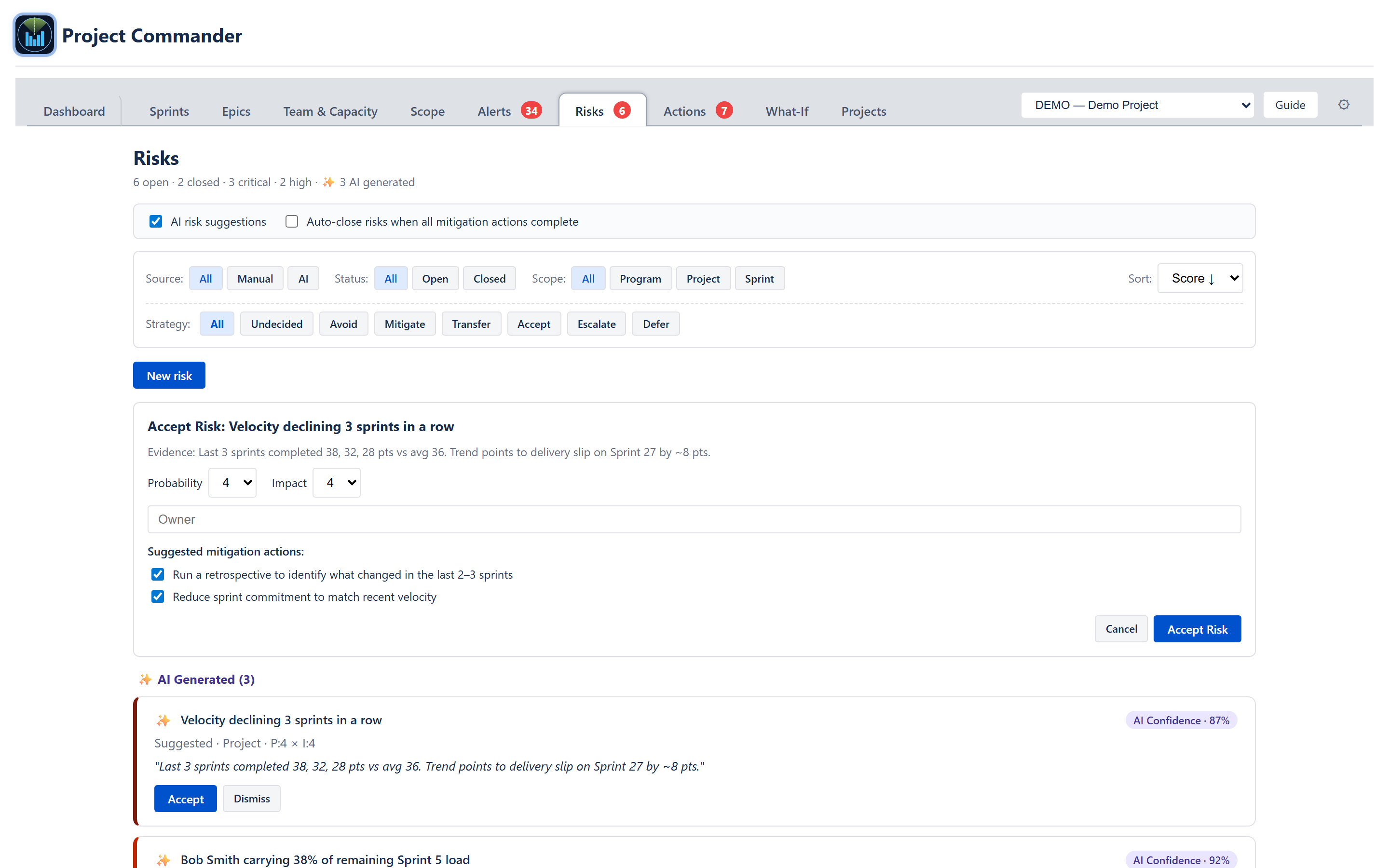
The same dialog also asks the AI for two to four specific mitigation actions tailored to the risk evidence. The actions are shown as a checklist; the user picks which to create as linked action items on accept. If the project has a curated catalog entry for the detector type, those mitigations are shown immediately; otherwise the AI is queried; otherwise a static fallback list keyed by detector type is used. A loading spinner appears while the AI call is in flight.
Abort handling
The dialog's title-polish and mitigation-suggestion calls each take an AbortSignal. Closing the dialog cancels in-flight requests so the user is not billed for results they will never see.
Manually Entered section
Holds manual risks plus all accepted AI risks (once accepted, an AI suggestion becomes a manual risk in this section). Each card shows:

- Severity badge — coloured pill on the left edge of the card, Critical / High / Medium / Low.
- Title — bold, with optional ✨ prefix when the title was AI-polished.
- Source / scope badge — Manual · Project · DEMO or AI · Sprint 90005, etc.
- P × I = N (Band) — explicit formula plus computed score and band name.
- Status — Open or Closed. Closed cards include Closed + reason (mitigated) + close date.
- RACI line — O: originator (or AI), A: accountable, R: responsible, C: consulted (comma-separated), I: informed (comma-separated). Only the Title is required to create a risk; Accountable is required only when the response strategy is Transfer.
- Description — free-form text from the create form.
- Evidence block — present on AI-accepted risks; copies the detector evidence verbatim so the reasoning is preserved.
- Matching alerts indicator — when the risk has alert provenance and the alerts engine still finds matching alerts, a red bell badge reads N alerts currently match and links into the Alerts tab.
- Mitigation actions — collapsible section (see below).
- Comments — collapsible section (see below).
- Edit / Mark closed / Delete — buttons at the bottom. Mark closed is hidden for already-closed risks; Edit is hidden for closed risks.
Mitigation actions section
Header reads N open · M done with a toggle caret. Expanded view lists each action with a checkbox, action text, owner, sprint assignment. Checking the box marks the action done; unchecking reopens it. When all actions are done:
- Auto-close on → risk closes silently as mitigated.
- Auto-close off → a green prompt appears: All actions complete — close this risk? with a Yes, close button.
An Add action button (only visible on open risks) opens an inline form with action text, optional owner, and a sprint dropdown defaulting to the active sprint (or Project scope when no active sprint). On save the action is created and immediately linked to this risk.
Comments section
Header reads Comments (N) with a caret. Expanded view shows each comment with author, date, and text. An inline add-form takes comment text + optional author and submits with Enter or the Add button. Comments are stored per risk and rendered in creation order.
New Risk dialog
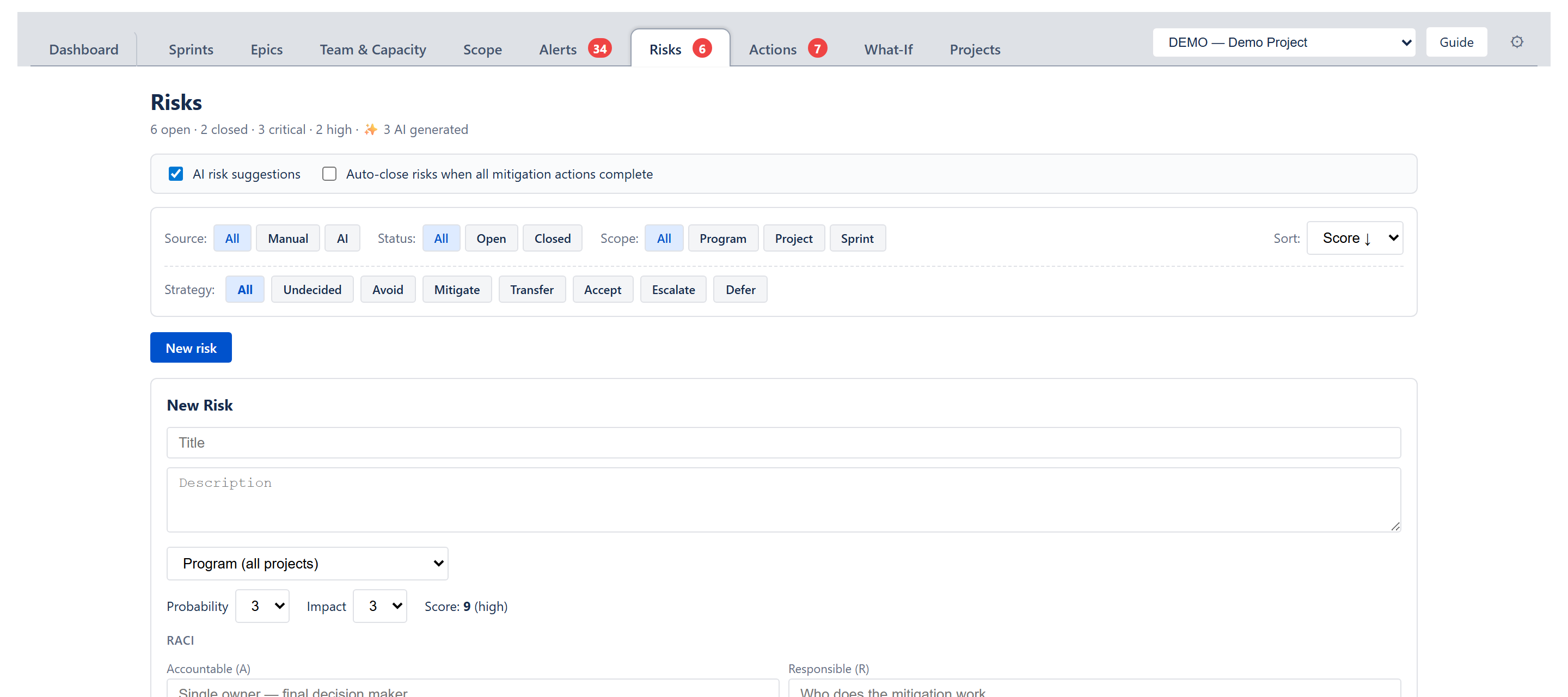
Triggered by the New risk button (or an alert's Create risk). The Accept button on an AI suggestion opens a separate, simpler Accept form (Probability, Impact, Owner, and a mitigation checklist), not this dialog. Fields:
- Title (required).
- Description (optional).
- Category — not chosen on this form; new risks default to Technical. The category dropdown (Technical / People / Process / External / Schedule) appears on the Edit form instead.
- Scope — cascading: first pick Program or a project key; if a project is picked, optionally narrow to a sprint. The persisted
scopefield is derived (no project → program; project + no sprint → project; both → sprint). - Probability — 1–5 dropdown with tooltips: 1 very low (<10%), 2 low (10–30%), 3 medium (30–50%), 4 high (50–70%), 5 very high (>70%).
- Impact — 1–5 dropdown with tooltips: 1 negligible, 2 minor, 3 moderate, 4 major, 5 catastrophic.
- Score & severity readout —
P × I = N (Band)updates as the user adjusts P and I. - RACI — Accountable (required only when the response strategy is Transfer; otherwise optional — this is the risk's owner), Responsible, Consulted (comma-separated), Informed (comma-separated).
- Mitigation summary — short text describing the plan.
- Jira issue — optional issue key to link the risk to.
When the form is launched from an alert ("Create risk" on a category in the Alerts tab) it pre-fills category, evidence, and probability/impact from the alert's category mapping; the alert provenance is recorded so the N alerts currently match indicator can later light up.
Edit dialog
Clicking Edit on a card switches it to inline edit mode. Same fields as the New dialog with values pre-populated. Save updates the storage; Cancel discards.
Response strategy
Every risk also carries a response strategy — the team's decision about how to handle the risk while it is still open. Strategy is orthogonal to status (an open + accept risk is a standing decision to absorb the risk, not a closure). The seven values are Undecided, Avoid, Mitigate, Transfer, Accept, Escalate, and Defer; each renders as a coloured chip on its own line under the risk title.
The six standard strategies
- Avoid (blue) — remove the source of the risk by changing scope, schedule, or approach. Plan change is required. Closing an Avoid risk uses closedReason: avoided and prompts for a closure note that references the plan change.
- Mitigate (amber) — accept the risk exists and take concrete actions to reduce its probability or impact. Default operational treatment. Auto-close on linked-action completion still applies.
- Transfer (teal) — move the risk to a vendor, insurer, or partner team. Requires an Accountable on save (you cannot transfer to no one).
- Accept (grey) — absorb the risk. Accept requires a rationale; an optional review-by date drives the Risk review due alert. The auto-close-on-actions-done rule is suppressed for accepted risks so an unrelated mitigation tick cannot silently close a standing decision.
- Escalate (red) — outside the team's authority; needs portfolio / leadership decision. Requires an Escalation owner. Surfaces in the Alerts tab under Escalated risks awaiting decision until the risk closes or strategy changes. Closing an escalated risk requires explicit confirmation.
- Defer (purple) — not enough information yet. Requires a Review-by date in the future. The risk drops out of the Top Open Risks widget until review-by minus 3 days, at which point it returns and an Alerts entry fires.
- Undecided (yellow) — legacy or first-render value; the chip prompts the owner to pick a strategy on next edit.
Strategy field, audit trail, rationale
- Strategy is set in the Response strategy radio group above the Mitigation summary field in both the New and Edit dialogs. The default selection is Undecided — every team decision should be deliberate.
- Choosing Escalate reveals an Escalation owner field. Choosing Defer (or Accept) reveals a Review-by date picker (mandatory for Defer, optional for Accept).
- A Rationale textarea (max 280 chars) sits at the bottom of the group. It is required for Accept, Escalate, and Defer because the audit trail is the whole point for those strategies.
- Changing strategy stamps strategyDecidedAt and strategyDecidedBy with the current user, and appends an audit comment to the comments thread ("Don changed strategy from Mitigate to Accept.").
- Switching away from Mitigate / Avoid preserves the existing mitigation text and any linked actions; the row relabels the text as Historical mitigation: so it doesn't read like a current commitment.
Dashboard mix bar + sort priority
The Top Open Risks widget gains a strategy mix bar ("4 mitigate · 2 accept · 1 escalate · 3 undecided") underneath the header. Zero-count buckets are hidden. The widget sort puts Undecided and Escalate risks above Accept at the same severity score so the items demanding attention surface first. Defer risks are excluded from the widget until their review window opens (review-by minus 3 days).
Alerts
Two new categories appear in a Risk strategy domain on the Alerts tab:
- Escalated risks awaiting decision — every open risk with strategy Escalate. Message reads Awaiting decision from {Escalation owner} or Awaiting escalation owner when none is set.
- Risk review due — every open Defer (or Accept with review-by) risk where today has reached review-by minus 3 days. Past review-by renders as an error severity; within the lead window renders as a warning.
Clicking a row in either category navigates to the Risks tab with the risk scrolled into view.
Complete Sprint and Accept risks
The Complete Sprint dialog surfaces risks whose linked mitigation actions are all complete and offers a one-click close. Accept risks are excluded from that list because acceptance is a standing decision, not an actions-driven mitigation. Avoid risks closed through this path record closedReason: avoided instead of mitigated. Escalated risks do not block sprint completion.
Severity formula
Severity is probability × impact with bands:
- ≥ 15 → Critical (red).
- ≥ 9 → High (dark amber).
- ≥ 4 → Medium (amber).
- < 4 → Low (green).
The card's left-edge stripe and the score badge use the same colour. The default sort is by score so critical risks float to the top.
Detectors that emit AI suggestions
The deterministic detectors that produce suggestions are documented in ALGORITHMS section 13. They include sprint-level detectors (low confidence, single-person load, mid-sprint scope creep, aging issues, capacity hit, untouched in active), project-level detectors (velocity decline, carry-over rising, deadline at risk, estimation quality declining, recurring actions, health trend dropping, critical sprint ahead), and cross-cutting detectors (oversized issues unsplit, and issues untouched in the active sprint).
Each detector has a configurable confidence threshold (default 60%); suggestions below the threshold are suppressed. The threshold is editable in Settings.
Demo / test mode
Empty / loading / error states
- No risks and no suggestions — No risks yet. Add one manually or accept an AI suggestion.
- Source = AI but no active suggestions — No AI-generated risks right now.
- Status = Closed and Source = AI — explanatory message that suggestions are inherently open and are hidden under this filter.
- AI loading — spinners next to the title-polish and mitigation lists; the dialog falls back to static suggestions on timeout or error so the dialog is always usable.
Cross-cutting modes and settings
- Sprint mode — sprint scope filtering and per-sprint detectors require sprints; in no-sprint projects the Sprint scope option is hidden.
- Programs — the scope picker exposes all registered project keys; risks can be scoped to Program, a specific project, or a sprint within a project.
- AI provider key — when no key is configured, the AI Generated section still renders but title polish and mitigation-AI calls are skipped; static fallbacks are used.
How the numbers are computed
Probability × impact, banding, detector definitions, and confidence calculation are documented in ALGORITHMS section 13. Title polish and mitigation generation are documented in ALGORITHMS section 21.
Effects on other parts of the app
- Dashboard Top Open Risks widget — reads the same risk store and shows the highest-severity open risks; clicking jumps back to this tab and scrolls the matching card into view.
- Tab badge — count of open risks on the Risks nav button.
- Notification engine — Critical risks fire a Blocker-severity notification on creation.
- Action items — accepting a suggestion or hitting Add action on a card creates rows in the Actions tab linked to this risk; ticking them done can auto-close the risk.
- Sprint card warnings — sprint-scoped risks light up the small ⚠ Risks badge on the corresponding sprint header.
- Alerts tab — Create risk in the Alerts tab is the inverse direction: alert evidence flows into the New Risk dialog with provenance.