 Project Commander Docs
← Back to site
Project Commander Docs
← Back to site
Settings — Feature Guide
What it's for
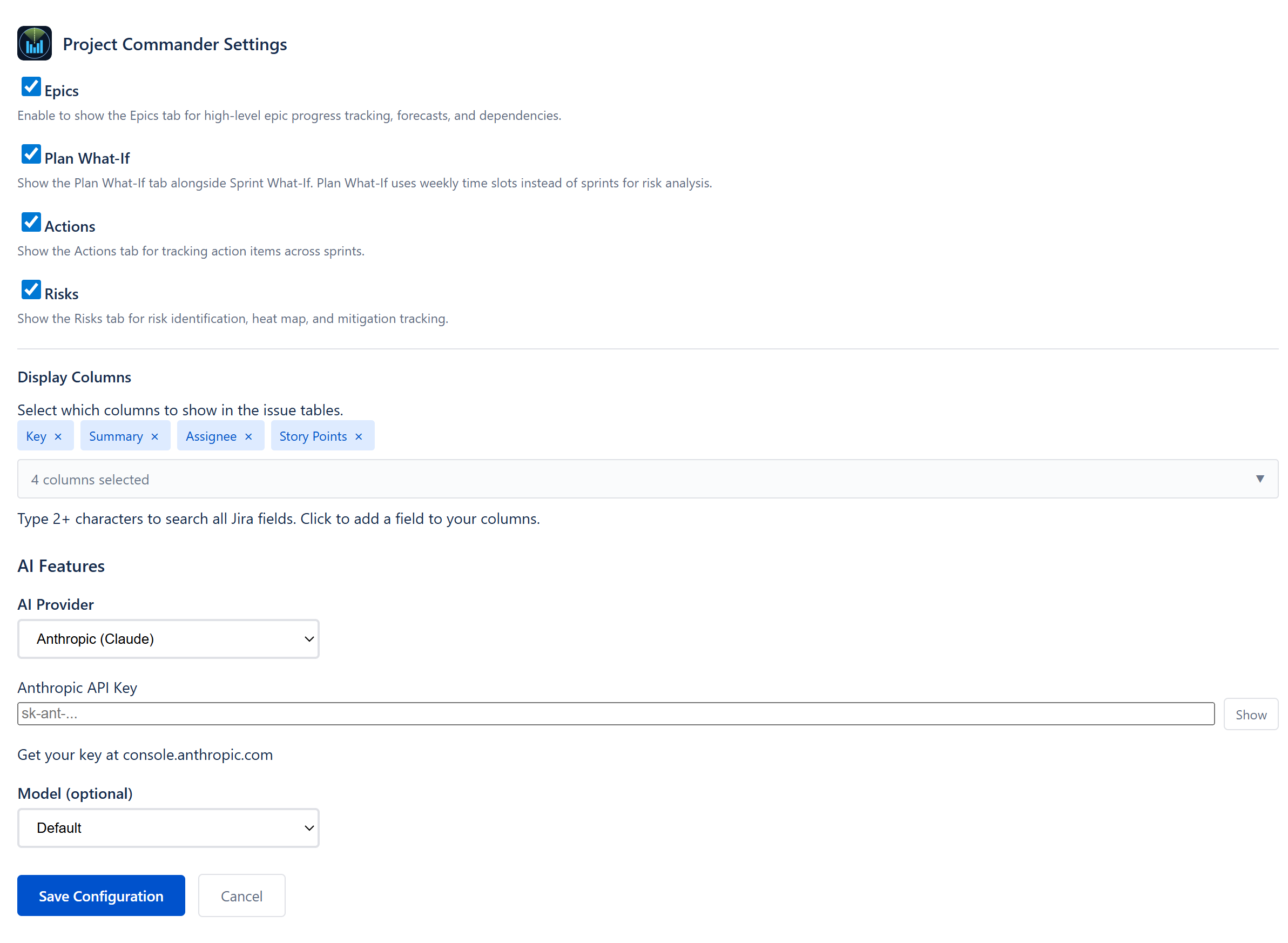
Settings is the global configuration hub for Project Commander. Every value here affects how data is displayed and computed across every tab — estimation units, AI provider, tab visibility, work-leveling defaults, operational modes (demo, regression, read-only), and the per-issue column set used in every issue table in the app.
The Settings panel is opened by the cog icon in the top-right of any tab. It is a single slide-out form with grouped sections and an explicit Save Configuration button at the bottom. Changes are not persisted until Save is clicked; closing the panel discards uncommitted changes.
Per-project settings (board ID, JQL filter, target date method, sprint length, capacity defaults) live on the per-project Edit form in the Projects tab — Settings here is for app-wide behaviour.
Display & Visibility section
This section toggles which optional tabs and major features are present in the navigation. Each toggle takes effect immediately on save.
Epics tab toggle
Enables the Epics tab (epic-to-sprint rollup, epic progress tracking, scope change per epic). When off, the Epics nav button is hidden and the panel is not rendered. Epics requires sprint mode to be on.
Plan What-If tab toggle
Enables the Project view of the What-If tab (the weekly time-axis Plan-Risk panel). When off, only the Sprint view of What-If is shown. The Sprint What-If toggle is independent.
Actions tab toggle
Enables the Actions tab. When off, the Actions nav button is hidden and the panel is not rendered. The Actions tab is only meaningful in sprint mode.
Risks tab toggle
Enables the Risks tab. When off, the Risks nav button is hidden. The tab and its detectors only run when sprint mode is on.
Read-only mode toggle
When on, every Jira write is blocked: drag-drop reordering, sprint Start / Complete, issue creation, sync due dates back to Jira. Reads continue to work. The toggle appears only when the backend has exposed the setting; in standalone deployments it is always available.
AI Features section
Configures the language model provider and key for AI-powered features in the app.
Provider dropdown
Anthropic, OpenAI, or Google. Switching providers clears the previously-selected model so the user can pick a model that exists for the new provider. Help text below the dropdown points to each provider's API console for key generation.
Data-handling disclosure
A short paragraph sits between the provider dropdown and the API Key input: When an API key is saved, sprint data (issue summaries, assignee names, sprint names, and story points) is sent to the selected AI provider. No data is sent if no key is configured. A Privacy policy link follows. The disclosure makes the data flow explicit at the point where the user is about to opt in, so consent is informed rather than buried in a policy document.
API Key input
Password-masked text input. A Show / Hide button toggles visibility for verification. The label adapts to the current provider (Anthropic API Key, OpenAI API Key, Google API Key) and the placeholder shows the expected format (sk-ant-…, sk-…, AIza…).
The key is held in the app's Atlassian Forge storage (Atlassian's encrypted secret storage, wiped on uninstall) and used only when an AI feature is invoked. The legacy anthropicApiKey field is also read for backwards compatibility — if a user previously stored a key under that field it still works.
Model selector
Optional dropdown. Default uses the provider's recommended mid-tier model. Override values:
- Anthropic — Claude Sonnet 4 (default), Claude Haiku 4.5 (fast and cheap), Claude Opus 4.6 (most capable, slowest, most expensive).
- OpenAI — GPT-4o (flagship), GPT-4o Mini (cheaper), GPT-4 Turbo (legacy).
- Google — Gemini 2.0 Flash (fast/cheap), Gemini 2.5 Pro (most capable).
Changing the model does not require re-entering the API key.
Display Columns section
Controls which Jira fields appear as columns in every issue table across the app (Sprints, Scope, Backlog, etc.).
Selected columns chips
Currently selected columns render as small blue chips. Each chip has an × button to instantly disable.
Column picker dropdown
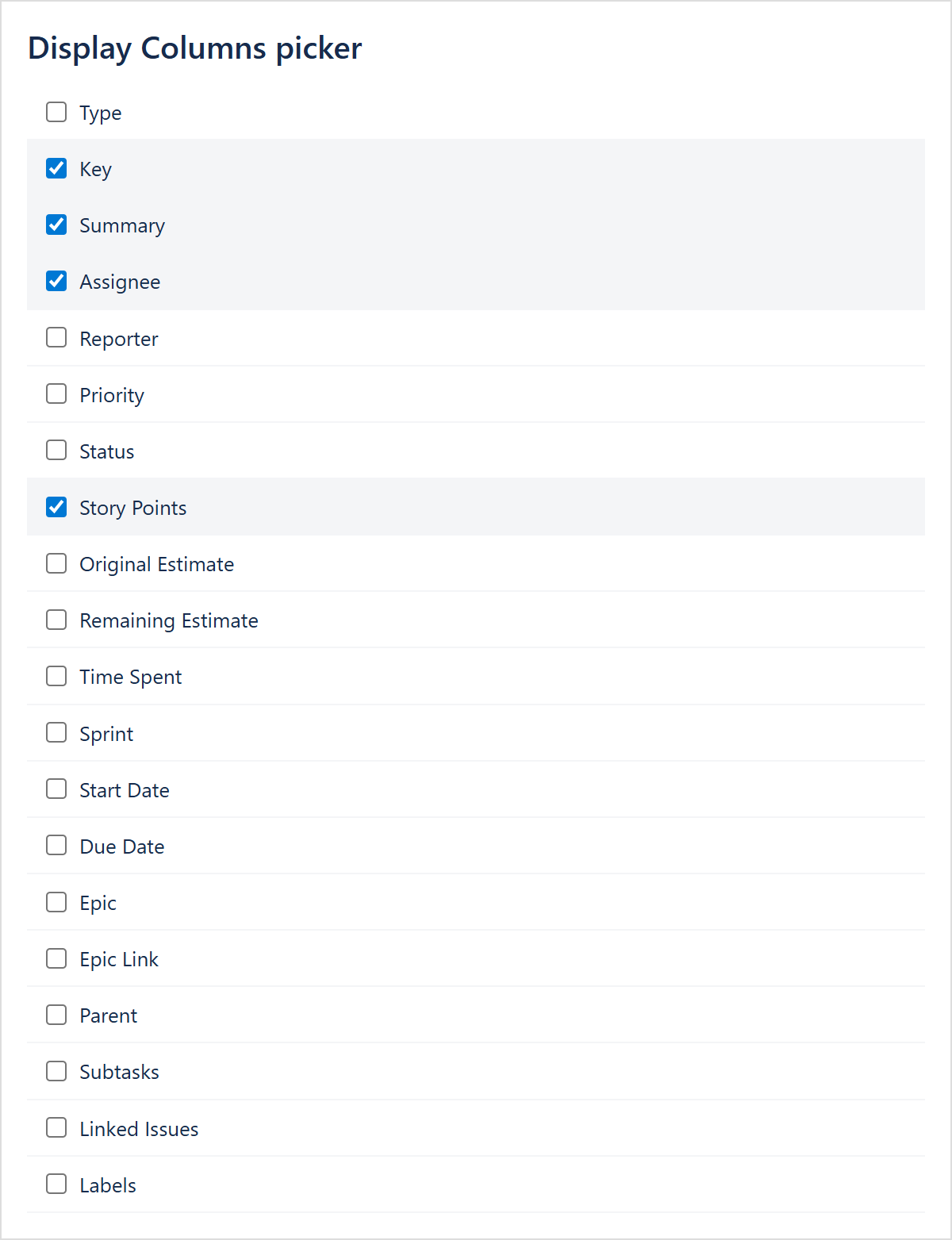
Opens a search + checkbox list. Behaviour:
- Standard columns — Type, Key, Summary, Assignee, Reporter, Priority, Status, Story Points, Original Estimate, Remaining Estimate, Time Spent, Sprint, Start Date, Due Date, Epic, Epic Link, Parent, Subtasks, Linked Issues, Labels. Each has a checkbox.
- Jira-field search — typing two or more characters queries the Jira instance for matching custom fields. The list shows up to 15 matches under a Jira Fields header. Clicking adds a field as a column.
- Custom column — typing a label that doesn't match any standard or Jira field exposes a + Add custom column option that creates a placeholder column.
The dropdown shows Loading Jira fields… while the field search is in flight; falls back to standard + custom columns if the request fails.
Default columns
If the user has never configured columns, the app defaults to Key, Summary, Assignee, Story Points.
Risks-tab AI controls (configured in the Risks tab itself)
Three controls live in Risks but affect the AI globally; they're listed here for completeness.
AI suggestions enabled toggle
When off, the deterministic risk detectors continue to run, but AI title polish and AI mitigation suggestions are skipped. Saves API calls and is the right setting for users who want only the deterministic engine.
AI suggestion confidence threshold
Numeric slider, 0–100. Suggestions whose computed confidence falls below the threshold are suppressed. Default 60. Has no effect on detection — only on display.
Risk Auto-Close toggle
When on, risks close silently as mitigated the moment their last open mitigation action is ticked done. When off, a confirmation prompt appears.
Per-project settings (configured in Projects tab)
The following are per-project; they live in the Projects → Edit form rather than global Settings, but they materially affect every tab so they're documented here.
Project name and key
Identifies the project; the key is what appears in tables and in dependency declarations.
Target date method
Two options: Latest issue due date (latest non-done due date — the default) or Fixed date (manual override). Drives every forecast and on-target verdict.
JQL filter
A Jira-Query-Language filter selecting which issues belong to the project. Re-evaluated on every refresh. The filter scopes both sprint cards and backlog — issues that don't match the filter are excluded from every sprint as well as the backlog. Leave blank to load every issue the user can browse.
Board ID and board name
The Jira board to load sprints and backlog from. demo loads built-in synthetic data.
Sprint mode on/off
When off (backlog-only), the app drops sprint boundaries and treats work as a flat list with optional weekly time-leveling. The Risks, Actions, and Epics tabs require sprint mode and are hidden when it's off.
Estimation mode
Story Points (uses the configured pointsField, default storyPoints), Time (hours) (uses remainingEstimate/originalEstimate/timeSpent), or Time (days) (same as hours, divided by 8 for display).
Switching mode re-derives the pointsField automatically — Points sets it to storyPoints, Time modes set it to remainingEstimate.
Sprint length in weeks
Default 2. Drives the sprint-to-week conversion used by Plan-Risk weekly bucketing, the per-sprint window for capacity, and forecast horizon math.
Hours per point (time mode only)
Conversion ratio used in contexts where both points and hours need to coexist (e.g., capacity in points but estimates in hours). Default 4.
Points field selector
The Jira field that holds story points; defaults to storyPoints. Override to use a custom field name when teams track estimates differently.
Sprint and per-user capacity overrides
Per-sprint and per-member explicit caps that override the velocity / hours-based defaults.
Include Backlog in forecasts
Default off. When on, the Dashboard and forecast counts every issue matching the JQL — not only sprinted + done work.
Capacity mode
How to estimate sprint capacity: Sprint (explicit per-sprint values), Velocity (rolling average), Effective (velocity adjusted for historical efficiency = actual ÷ planned), or User-based (sum of per-member hours converted to points). Each method yields a different forecast on the same project; the Dashboard's Delivery Forecast card has a per-card method dropdown that overrides this for that card alone.
Demo mode toggle
When on, the project loads built-in synthetic sprints, issues, and team. AI auto-fire on Dashboard Insights is disabled. A DEMO MODE label appears in the toolbar.
Regression mode toggle
When on, every non-deterministic feature is suppressed (Monte Carlo, AI auto-fire, randomisation in forecasts). The mode is for the e2e test harness; not intended for end users.
Save behaviour
A single Save Configuration button at the bottom of the panel:
- Validates that required fields are present (e.g., when AI features are enabled, a key must be set).
- Saves the config to the app's Atlassian Forge storage, scoped to your Atlassian account and removed on uninstall. (The demo-only standalone web app keeps settings in in-memory session state, which resets on reload — no browser persistence.)
- Shows Saving… on the button while in flight.
- Shows Saved! in green on success.
- Shows a red error message on failure (network timeout, validation error, etc.); retry is available by clicking Save again.
A Cancel button (if the parent has wired one) closes the panel without saving. Pending changes are discarded.
Effects on the rest of the app
Estimation mode
Affects every tab. Velocity unit, capacity unit, dashboard stat-card units, sprint capacity bars, scope burndown axis, risks impact unit, Auto-Level leveling unit. The unit cannot be mixed within a project.
Sprint length and velocity lookback
Velocity rolling-average window, weekly bucketing for Plan-Risk, forecast step size, and new-sprint capacity defaults all read these.
Capacity mode
Drives Auto-Level capacity caps, deterministic forecast, Monte Carlo capacity provider, Dashboard Delivery Forecast options.
AI provider + key
When configured, unlocks Dashboard AI Insights auto-fire, Risks AI title polish + mitigation suggestions, Critical Chain AI box, What-If chat, Auto-Level AI Review, Project AI floating chat, and notification narrative. When not configured, every AI feature renders a Configure an AI API key in Settings notice instead of running.
Tab visibility toggles
Hide / show their respective tabs without affecting underlying detection — the deterministic engines still run.
Read-only mode
Every Jira write path checks this flag before issuing a request. Drag-drop, Start Sprint, Complete Sprint, Sync Due Dates, Issue Create are all gated by it.
Display columns
Every issue table — Sprints, Scope, Backlog, Plan Review, Critical Chain — reads from this list. Adding a Jira custom field to the column set makes it visible everywhere at once.
Demo / regression mode
Both swap the data layer to fixtures; rendering and rule evaluation are otherwise unchanged.
Notifications engine (independent of Settings)
The Notification engine documented in ALGORITHMS section 14a runs deterministically off project state and is not directly configured here. The Notifications slide-out (bell icon in the toolbar) is the user-facing surface.
How the numbers are computed
Every value in Settings either selects a method or sets a constant; the computation logic that consumes them is documented in ALGORITHMS:
- Estimation mode field reads — Appendix → Capacity and Demand and Velocity.
- Capacity modes — section 1 (Delivery Forecast) plus the per-method providers.
- AI rules — section 15 (Shared rules) and section 21 (Risks Accept Dialog) for title polish + mitigation.
- Notifications — section 14a.